

Projects and sections
Create projects and sections, browse files, sort and search.
Projects
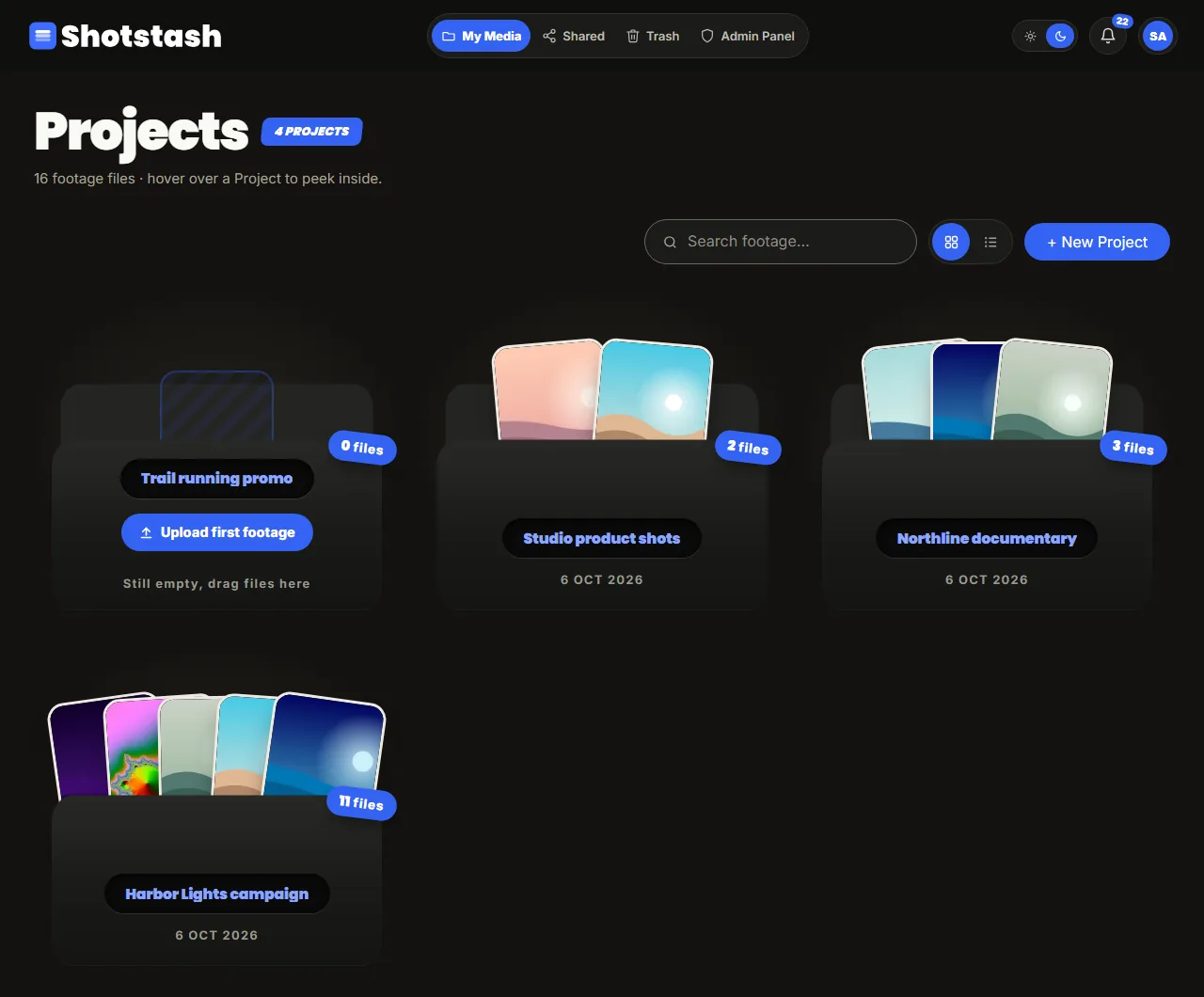
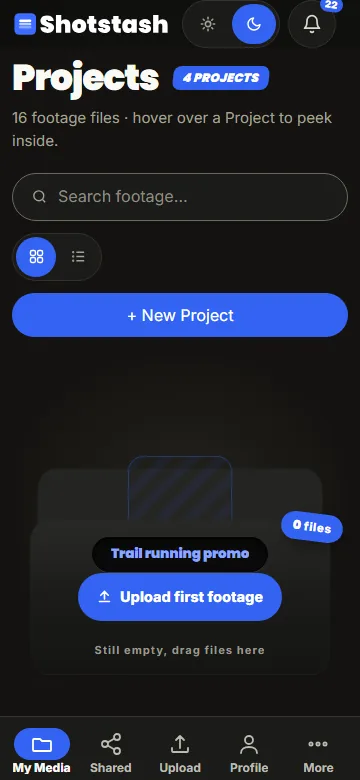
My Media lists every project as a folder with a peek at its latest files. Hover over a project (or tap it on a phone) to look inside, click it to open it. New Project creates one with a title and an optional description.
Sections
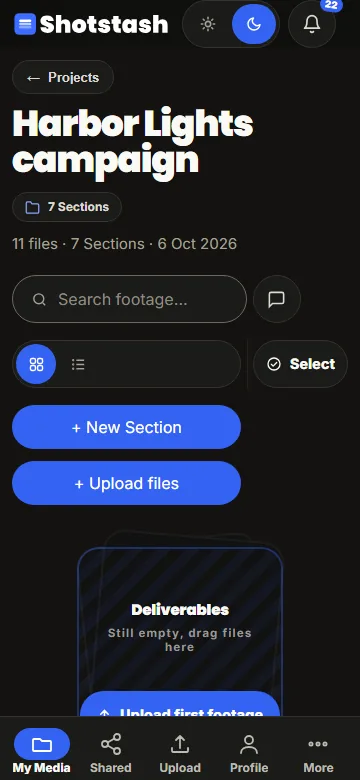
Inside a project, files live in sections. A new project starts with a few sections you can rename or remove; New Section adds more. A section card shows a preview and its file count; an empty section offers Upload first footage and accepts files dragged onto it.
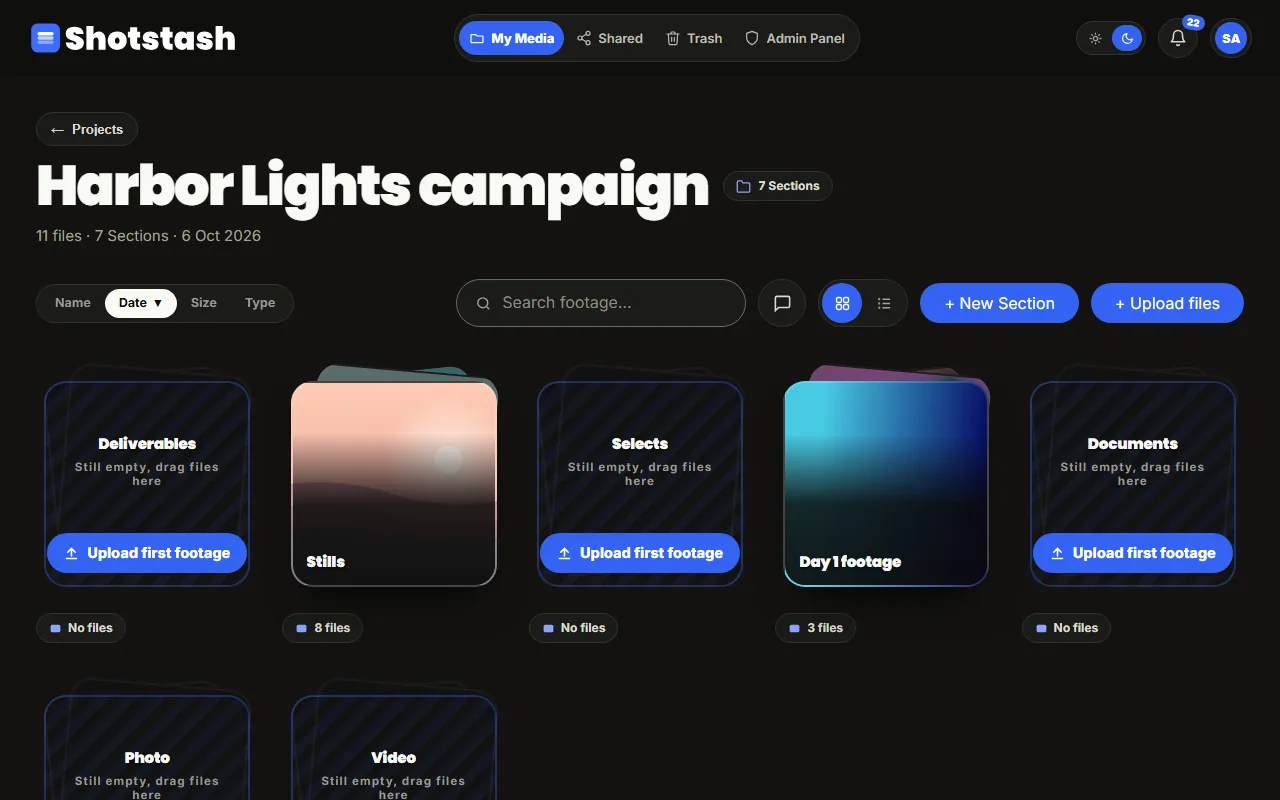
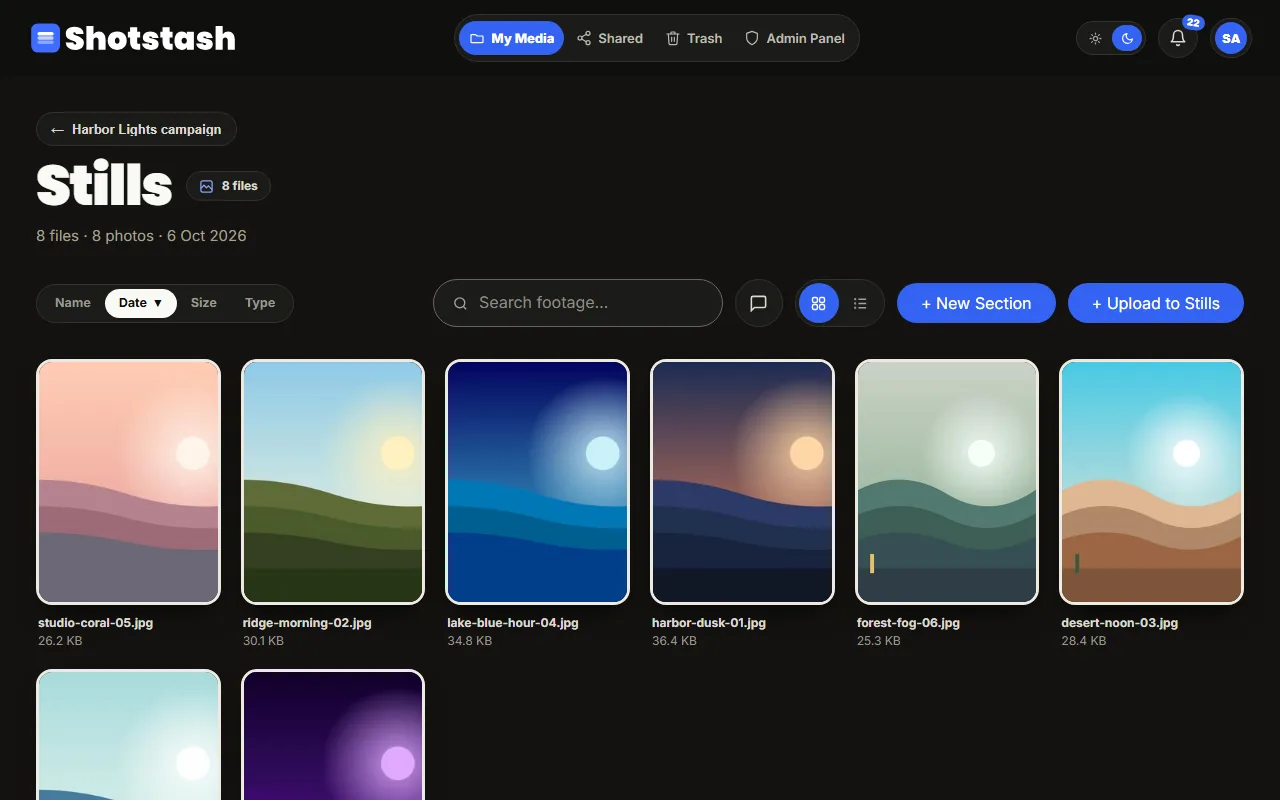
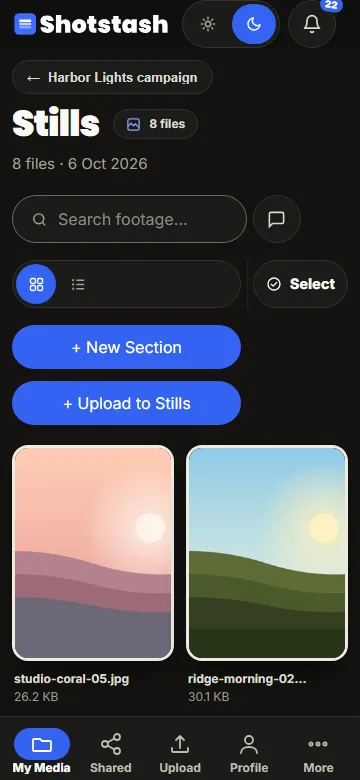
Open a section to see its files. Switch between the grid and the list with the buttons next to the search field, and sort by name, date, size or type.
Finding things
The search field finds files and sections by name. Results update as you type.
Moving, renaming and deleting
Every file and section has an actions menu (the three dots): Rename, Move to… another section or project, share, and Move to Trash. You can also drag files onto another section to move them. Select lets you pick several files and download them as one ZIP or move them to the Trash together.
Trashed items wait in the Trash and can be restored. They are deleted for good after 30 days (your administrator can change this), and share links to them stop working at once.