

Sharing
Send a file, a section or a whole project to people outside your team, with or without an access code.
A share link opens a clean page with your files, for people who have no account: a client, a colleague at another company, a friend. Share a single file, a section or a whole project.
Creating a link
Choose Share on a file (in the viewer, or on its card), a section or a project, then pick:
- Access mode. Public: anyone with the link can open it. Private: the page asks for an access code first.
- Expires. After 24 hours, 7 days, or never.
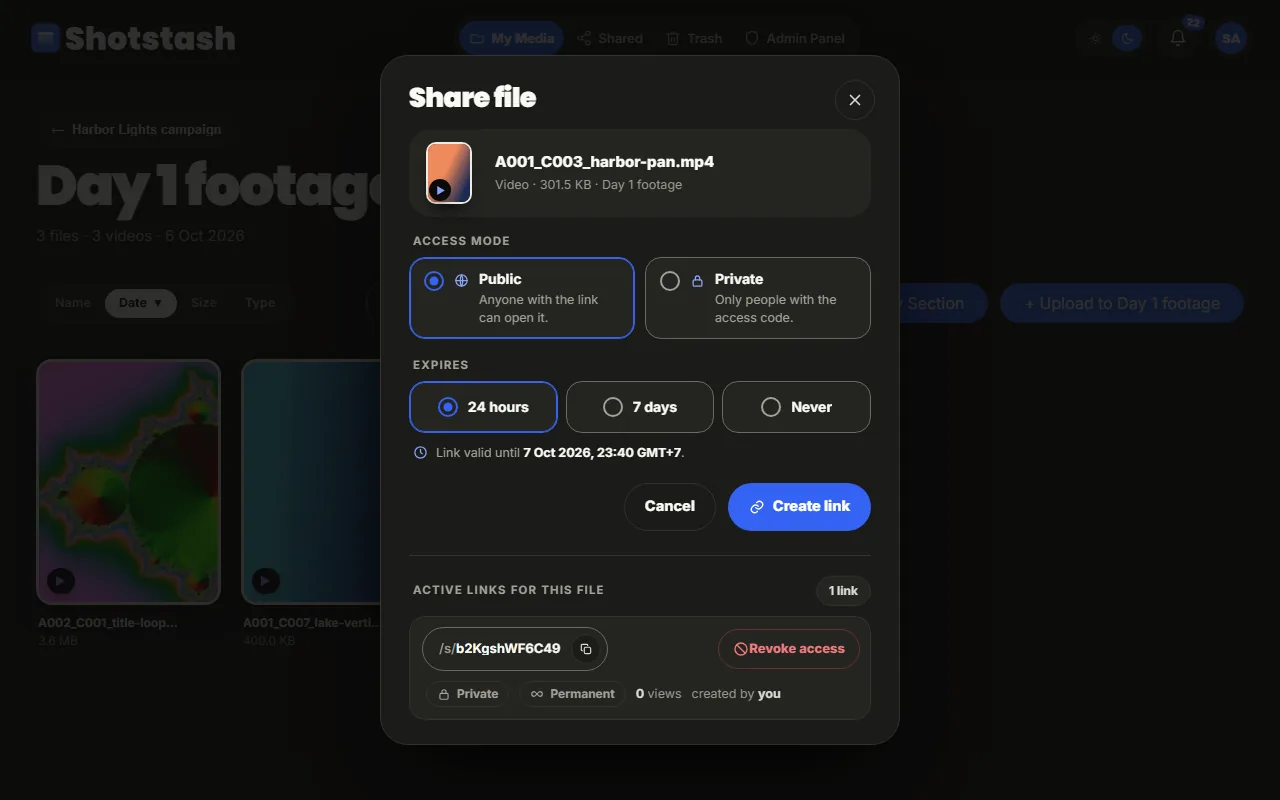
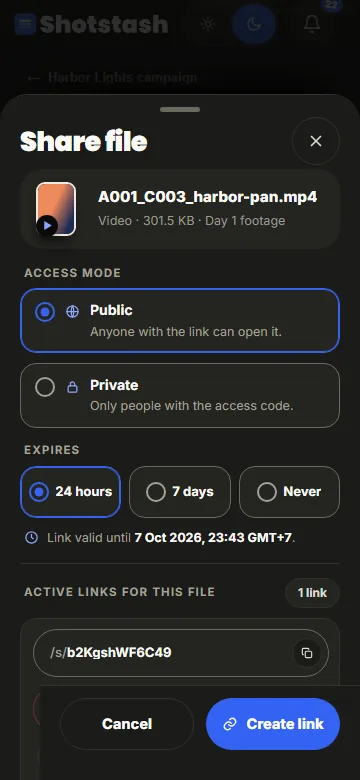
Create link makes the address to copy. For a private link the dialog also shows the access code once: send it separately from the link (a message in another app, a phone call). If you lose it, create a new link.
The dialog also lists the links that already exist for the item, so you can copy or revoke them.
What the other person sees
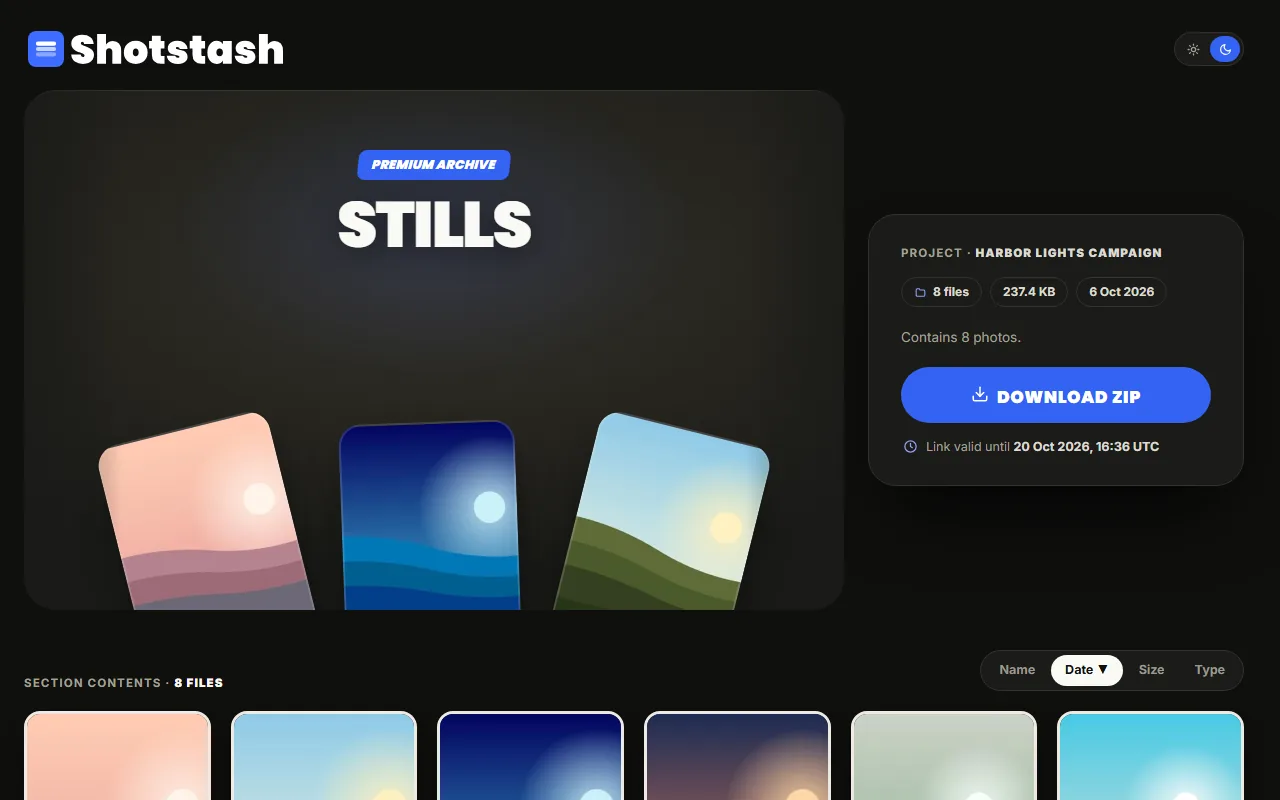
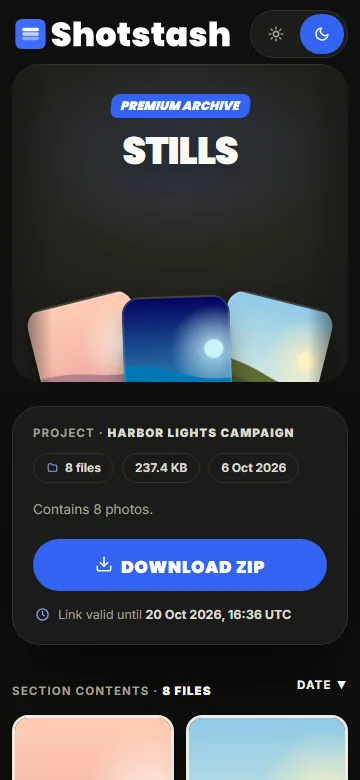
The share page shows the files with their thumbnails, a viewer, and Download ZIP for everything in the link. Downloads come straight from your server; the person never gets an account or sees anything else.
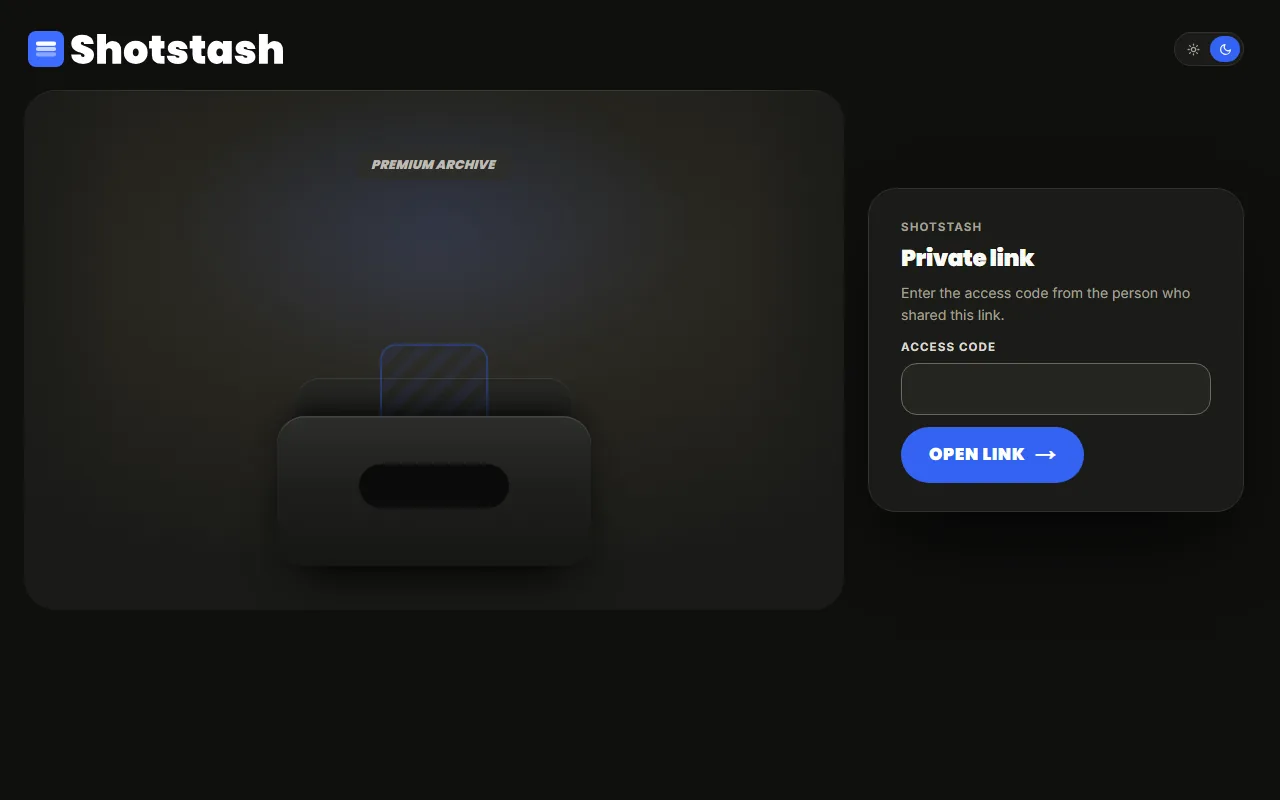
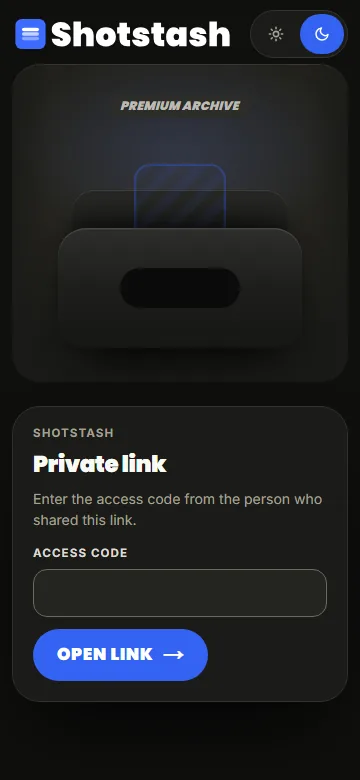
A private link first asks for the access code:
Managing links
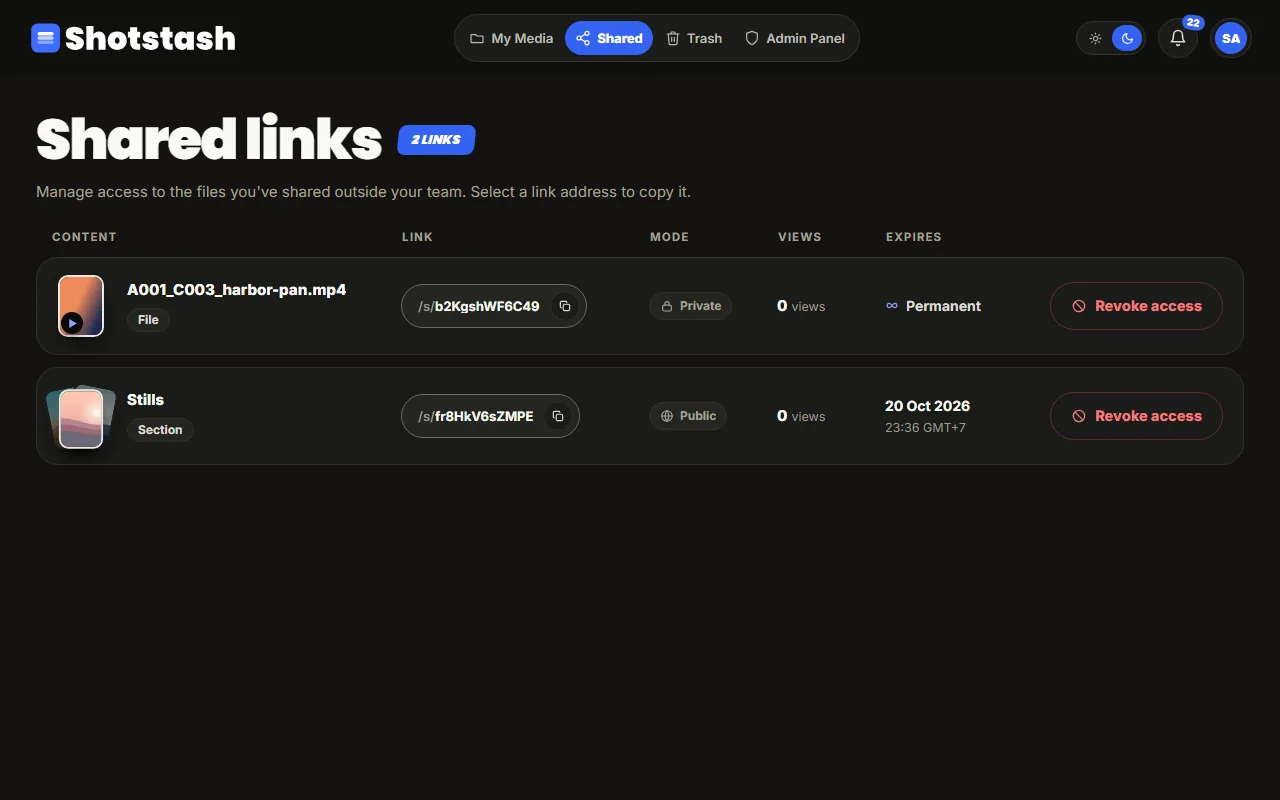
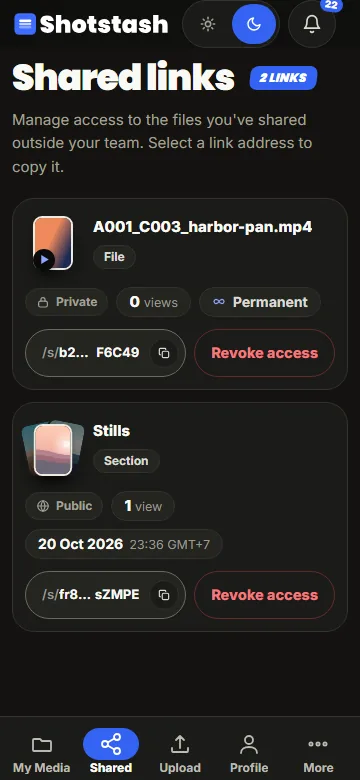
Shared in the top bar lists the links: what each one points to, public or private, how many times it was opened, and when it expires. Revoke access ends a link at once.
A link also stops working when it expires, and when the file, section or project it points to is moved to the Trash or deleted.
Who can share
Everyone except viewers can create links. Crew and editors manage the links they created; admins manage all of them.